 Simon
Simon
·
Dev Log DevKnife Update 1.12.0
DevKnife 1.12.0 fixes several macOS Tahoe visual issues, updates the app icon, and resolves a JSON tree parsing bug.
Read MoreJSON (JavaScript Object Notation) is everywhere today because many apps and web services use it to store settings, transfer data, and communicate with servers. On a Mac you might download JSON files when working with APIs, exporting data from web apps, or even when certain desktop apps save their configuration in a human‑readable format.
Although JSON is plain text, opening it in a basic editor like TextEdit or Notes often results in a dense wall of text without line breaks or color highlighting. Large files can be hard to navigate, and a single missing bracket or quote can make the structure confusing to read without proper formatting.
Now that we know why JSON files can be tricky to read, let’s look at the different ways you can open and work with them on macOS.
The simplest way to open a JSON file is to use a built‑in text editor like TextEdit. It’s available on every Mac and requires no installation. Just double‑click the file and it will open in plain text.

A JSON file opened in TextEdit without formatting
This is convenient for a quick look, but without syntax highlighting or automatic formatting the content can appear as a single block of text, making large files harder to read or edit.
Online JSON viewers are handy when you just need to inspect a file quickly without installing anything.
Websites like jsonlint.com or jsonviewer.io let you upload or paste your JSON and immediately see a formatted, color‑highlighted version.
This is great for occasional use, but keep in mind that you’re sending potentially sensitive data to a third‑party service, and it requires an internet connection.
Browser extensions can format JSON responses directly in your web browser, which is useful if you often work with APIs or inspect network responses. Extensions like JSON Formatter for Chrome or Firefox automatically prettify JSON when you open a raw .json URL, adding collapsible sections and color highlighting.
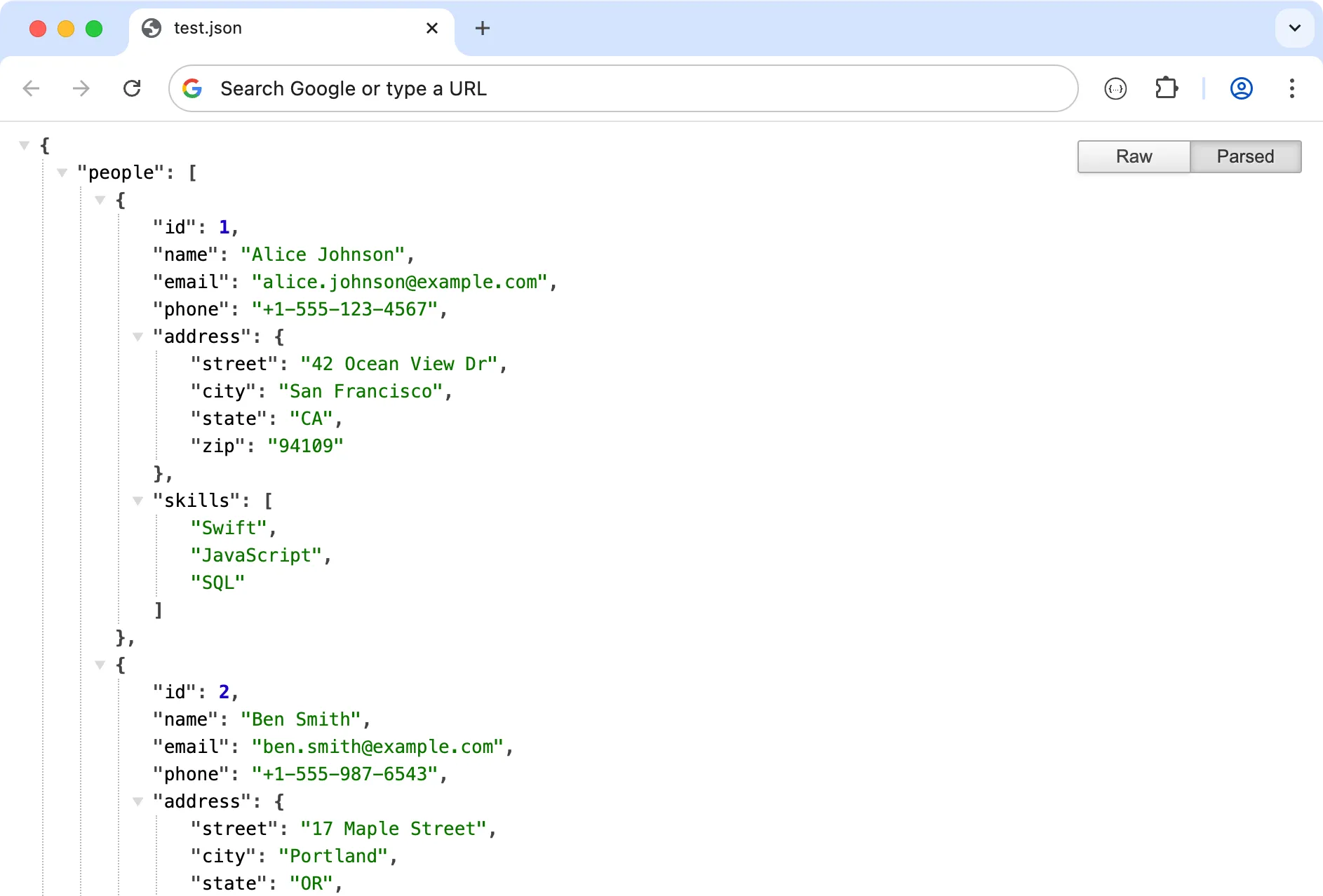
A JSON file viewed in Chrome with the JSON Formatter extension.
Some of these tools can also open a local JSON file, but this doesn’t always work reliably because of browser security restrictions. When it does work, you can usually drag a file into the browser or use an Open File option to view its contents with the same formatting.
They’re perfect for quick viewing inside the browser, but they offer limited editing features and won’t help with local files on your Mac beyond viewing.
Dedicated JSON apps give you the best experience if you work with JSON files regularly. These native Mac tools provide features like syntax highlighting, collapsible sections, search, and validation without relying on the internet.
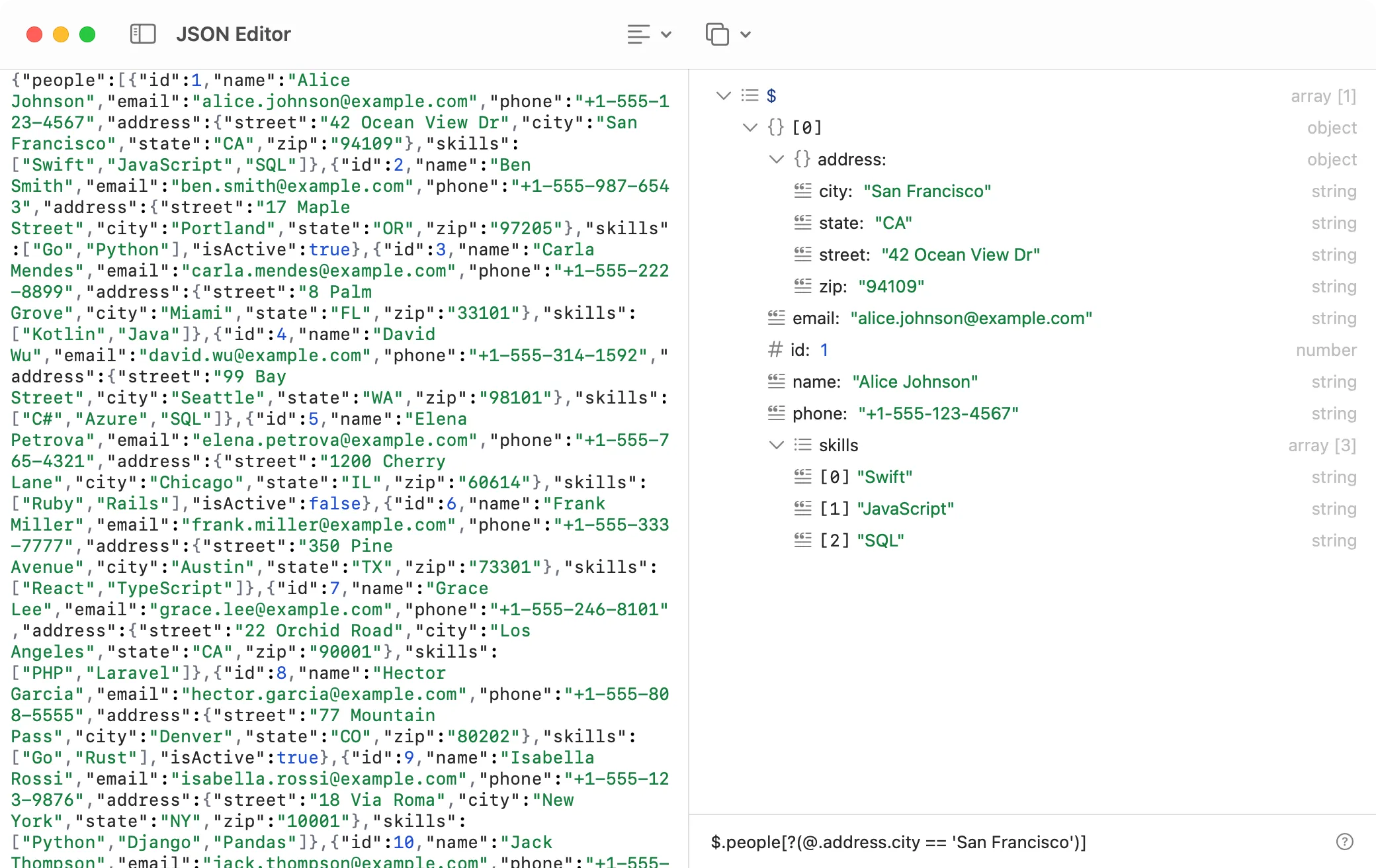
Sample JSON in DevKnife’s editor with a JSONPath filter applied.
Apps such as DevKnife combine a clean interface with advanced options like JSONPath queries, making it easy to browse large files, check structure, and format data securely on your own machine.
From quick one‑time checks to heavy daily use, macOS offers several ways to open and explore JSON files.
Built‑in apps like TextEdit are fine for quick checks, online viewers are convenient but less private, browser extensions help with web data, and dedicated apps like DevKnife provide the most powerful and secure experience for regular use.
DevKnife 1.12.0 fixes several macOS Tahoe visual issues, updates the app icon, and resolves a JSON tree parsing bug.
Read More
Fast, private, and built for macOS.