
Markdown Editor
The Markdown Editor lets you write, edit, and preview Markdown files in real time. It is designed for documentation, README files, articles, and notes, with a split interface that keeps the source and rendered result together.
Markdown is a lightweight markup language used to format plain text. It allows you to add structure—like headings, lists, links, and emphasis—using simple, human-readable syntax, which makes it widely used for documentation, README files, and blog posts.
Editor and Preview
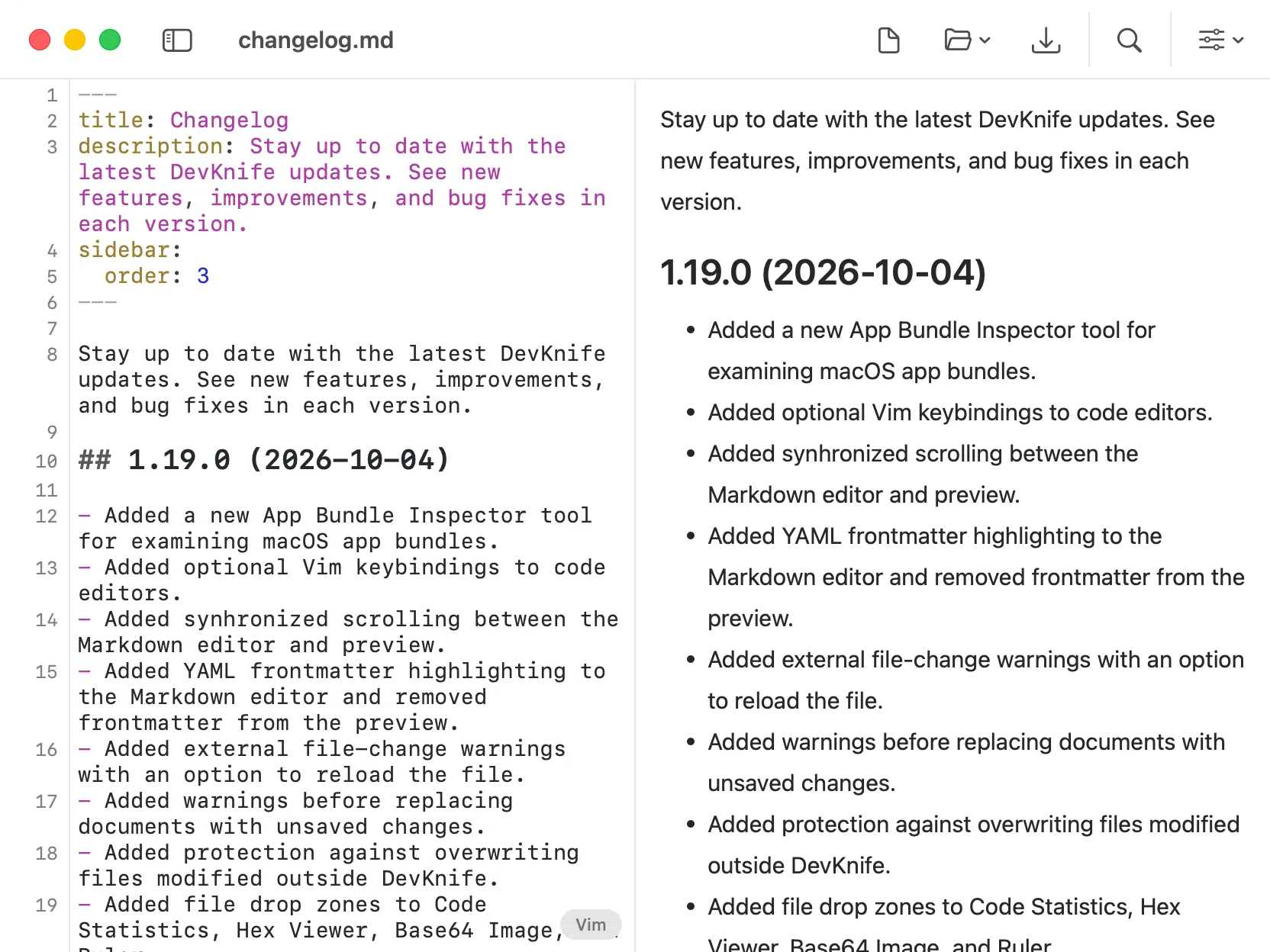
Section titled “Editor and Preview”The editor provides a split view with the Markdown input on the left and the rendered preview on the right. As you type, the preview updates automatically, allowing you to see the formatted output instantly.
The editor supports syntax highlighting for headings, lists, links, emphasis, inline code, fenced code blocks, blockquotes, tables, and other common Markdown syntax. Code blocks in the preview use a distinct background, border, spacing, and monospace font so they are easier to distinguish from the surrounding content.
Use the editor settings menu to show or hide the preview, line numbers, and word wrapping. Preview font size and line spacing can be adjusted separately in Preview Settings.
Synchronized Scrolling
Section titled “Synchronized Scrolling”Enable Synchronized Scrolling from the editor settings menu to keep the source editor and rendered preview at corresponding positions while you scroll either panel. The option is available when the preview is visible and is disabled by default.
YAML Frontmatter
Section titled “YAML Frontmatter”YAML frontmatter at the beginning of a document is highlighted in the source editor. DevKnife keeps this metadata available for editing but removes it from the rendered preview, so fields such as a title, date, or draft status do not appear as article content.
Frontmatter must begin at the start of the document and be enclosed by --- delimiters.
Optional Vim Keybindings
Section titled “Optional Vim Keybindings”Vim keybindings can be enabled under Settings → Editor → Behavior. The Markdown editor supports Normal, Insert, Visual, and Visual Line modes, along with common navigation, editing, selection, paste, undo, redo, and count-based commands.
A mode indicator appears inside the editor when Vim keybindings are enabled. The setting is optional and does not change the default editing behavior when it is turned off.
Opening and Saving Files
Section titled “Opening and Saving Files”Open existing .md and .markdown files, create a new document, or save the current document to disk. Recently opened files are available from the Open menu, and a dot next to the file name indicates unsaved changes.
Before opening another file or creating a new document, DevKnife warns you when the current document contains unsaved changes. You can save, discard, or cancel before the document is replaced.
External File Changes
Section titled “External File Changes”DevKnife monitors the open Markdown file for changes made by another app. When the file changes on disk, a warning appears with an option to reload the latest version. If the editor also contains unsaved changes, DevKnife asks for confirmation before reloading.
DevKnife also checks for external changes before saving. When the version on disk is newer than the version you opened, you can choose whether to overwrite it, reload it, or cancel the save. This helps prevent changes from another editor or process from being overwritten accidentally.